Wednesday, 26 April 2017

Dual Whatsapp Account On Android – 2017 (Updated)

Dual Whatsapp Account On Android – 2017 (Updated)

Whatsapp is commonly used and a rather popular messenger apps for smartphone device. It is available for almost all mobile platform including Android, IOS, Symbian etc. With the help of whatsapp we can send text, images, Audio, video etc to our friends, relatives. Whatsapp have some limitations link we can’t send few important files like xls, doc and more. In our previous article we also solved this problem which was about send files on whatsapp. Another reason for the popularity of whatsapp is its new feature like whatsapp free calling. You can also check hide images and video from gallery to inclease privacy. Something we accidentally delete phone data. Along with everything, whatsapp database also gets deleted then all the chat, files become inaccessible. So we recommend to read restore deleted messages whatsapp.
Today in this tutorial we are rather going to discuss about using two whatsapp account on same device. Usually we use Android phones which have Dual Sim functionality. But whats app allow you to create only one Account on one Device. We can create two whatsapp account for our both number but we can’t access them at same time on same device. In some condition we use two number like one for profession and second one for family. We want to keep in touch with both whatsapp account. Hence, If you also suffering from this problem then this article is really for you. Today we will explain how to Use dual whatsapp account on single Android device..

How To Run Dual Whatsapp Account On Android.

Method 1:- Dual Whatsapp Account By Using WhatsMapp Solo.

WhatsMapp solo is an Amazing App. By using this App we can Easily create another Whatsapp account on the single Android device. It provide custom icons, Status bar color changing in Lollipop version. Its one of the important feature is it is a antiban App.
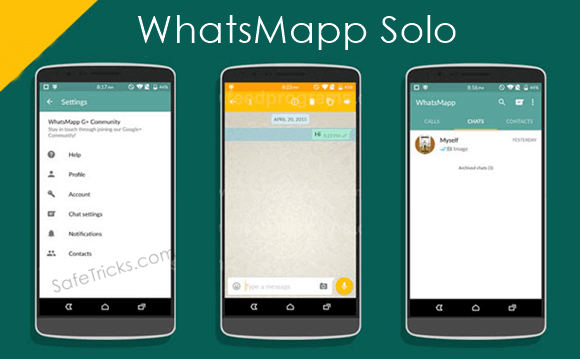
Dual Whatsapp account By Using WhatsMapp Solo

Steps To Create Account On WhatsMapp Solo.

1. First you have to download this App and install into your Android phone. you can download it from the button shown below.

Download Button2. Follow the same steps as you follow to make a whatsapp account. Don’t use the same number to create an account.
3. If you face some problem then you should backup and remove the original whatsapp and after that install this App.

Method 2:- Dual Whatsapp By Using OG WhatsApp.
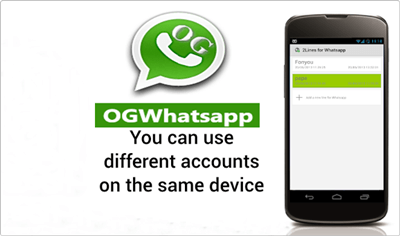
Dual Whatsapp By Using OG WhatsApp

Steps To Create Account On OGWhatsapp.

1. First you have to backup your chats from the Whatsapp settings. You have to go to WhatsApp settings >> chat settings >> Back Up chats.
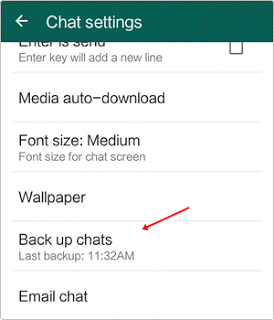
Dual whatsapp ogwhatsapp chat settings
2. Then you have go to your phone settings >> Apps >> whatsapp and click on it and tap the clear data option.
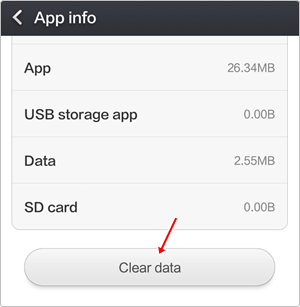
Android app info clear data for dual whatsapp
3. Now go to your whatsapp folder whether it is located on phone storage and SD card and rename it to OGwhatsApp.
4. Uninstall your original whatsapp.
5. Now you have to download this App and then install into your Android phone. You can also download it from the button shown below.
Download Button
6. Create your Account and then, enjoy the trick.
7. Download original whatsapp create/ restore your old account. Hence, you have dual Account.
Note:- In some devices second method may or may not works then we recommend to try first method.
So these are the best possible ways to use two or dual whatsapp account on single android device at same time. In case you find this trick not working or have any trouble don’t forget to share your precious comment.

How To Add Adsense Below Post Title On Blogger

How To Add Adsense In Our Blog or websites

Google Adsense is best online publisher ad network for contextual ads. Google Adsense is best online method to earn from website or blog just by placing ads on them. Adsense offers various type of ads format and size in which they offers text ads, animated flash ads, images based ads in various size in shape of rectangle, square, skyscraper and even Responsive ad units. But for every new blogger or publisher which don’t have good knowledge about ads placement always face problem which showing ads at different positions in their blog.
To earn good revenue from Adsense it is important to place ads at right place where users having more interactions. by choose right ads placement it will boost your earnings. So to places within upper fold of blog, place below post title is always perform better than any another upper fold banners. But to Add Adsense below post title on blogger we always face problem just because their is no option to show ads below post title. If you are also facing problem same issue which ads place then we are sure that this topic is solution of your problem.

How To Put Adsense Below Post Title On Blogger. ?

  • First of Go to Adsense Account and then create new ad unit of size which want otherwise on my recommendation create banner of size 336*280 or 300*250
  • Then select the type of your Adsense code from Asynchronous and Synchronous ad unit and copy your Adsense code into notepad.
  • Now Google HTML Encoder tool to convert your Adsense code for placement within HTML tags.
  • In encoder tool paste your Adsense ad unit and convert your according to your  ad unit type as explained below

Encoding For Asynchronous Code.

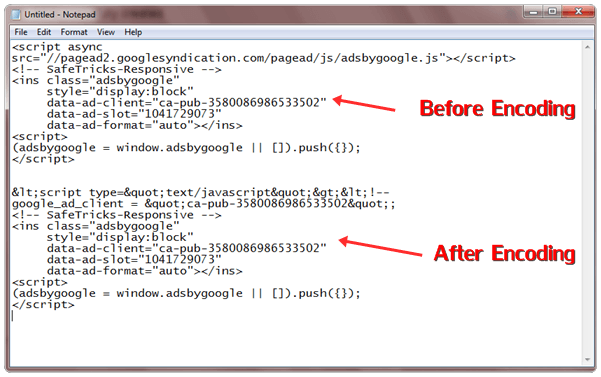
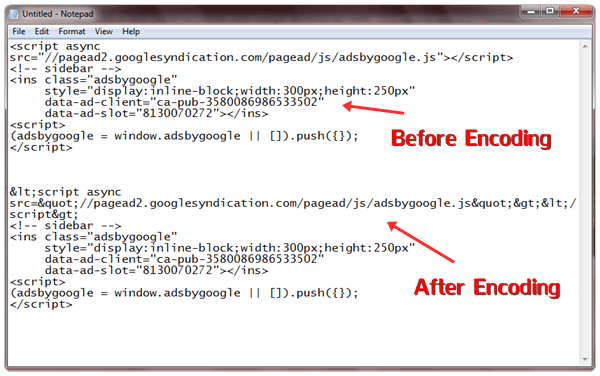
  • If you are using asynchronous ad unit then only convert this portion of your ad unit with encoder tool
<script async src=”//pagead2.googlesyndication.com/pagead/js/adsbygoogle.js”></script>
  • After encoding this code simply replace your old code with encoded then it look likes
encode asynchronous adsense code
  • Never Encode whole asynchronous ad unit it may not works for some template. So only encode in same way as shown above

Encoding For Synchronous Code.

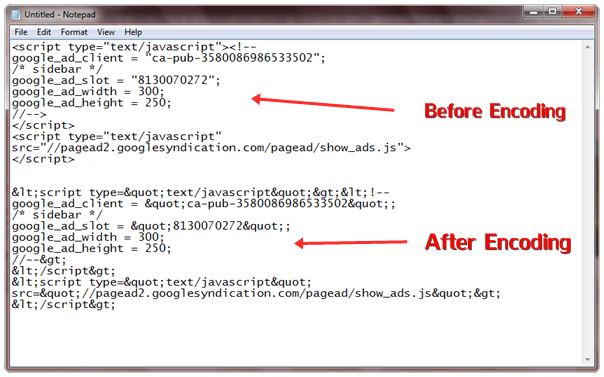
  • If you want to place Adsense ad code of synchronous type then simply code all ad unit code and place it in encoder tool.
  • Then Encode the whole Adsense ad unit and paste it in notepad for further usage. It look like
encode synchronous adsense code

Encoding For Responsive Ad Unit.

  • Responsive ad unit will encoded in same as done in Asynchronous only encode same portion and replace it with previous once and it will something look like this one.
encode responsive adsense code

How To Add Adsense Code In Blogger ?

  • After doing all process of encoding then you have to place them below your post title to do this process.
  • Open Your Blogger Dashboard >> Template section >> Edit HTML.
  • Then Search for code by CTRL+F which something look like this code.
 <div class=’post-body entry-content’>
  • After finding above code just below it, paste the codes given below. In case if you don’t find above code then search for <data:post.body/> and paste below code just above <data:post.body/>
<b:if cond=’data:blog.pageType == &quot;item&quot;’>
<div align=”center“> Encoded Ad unit code here</div>
</b:if>
  • Replace  Encoded Ad unit code here with the adsense ad unit code which we have encoded above with tool.
  • To change ads position you can change it from center to left or right just by replacing center
  • After doing all these changes save your settings and your Adsense code will works fine.
If you want to change conditional tag to show or hide adsense ads from according to yourself just replace  <b:if cond=’data:blog.pageType == &quot;item&quot;’> with your conditional tag or if you want learn about conditional tags then

How To Detect/Check Unfollowers On Instagram (2 Ways)

How To Check Unfollowers On Instagram. ?

Method 1:- Use Website To Check Who Unfollowed You On Instagram.

There are many websites available that let you check who Unfollowed you on Instagram. You just need to open up those websites. Log in using your Username and password. Give website the permission to check your Instagram account and you are done. Web sites that let you check who Unfollowed you on Instagram are listed below. And they all are free to use.

Crowdfire Website.

There were and still are few websites which can be used to manage your Instagram Account. However, recently due to changes in Instagram API some websites have disabled their service. Unfollowgram and Insta.friendorfollow.com to name a couple of them.
The service which I am going to tell you is still active and works accurately. I have tested it and did the job perfectly. Have a look at the website used and the procedure to use it.
  1. Visit Crowdfire website to check who Unfollowed you on Instagram.
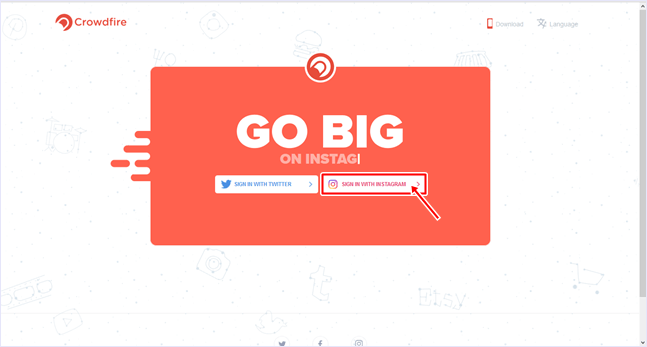
  2. Click on Login With Instagram.
    crowdfire website
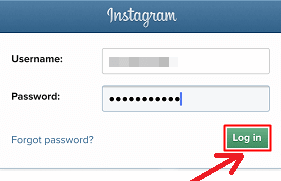
  3. Now you will need to enter your username and password and click Log In.crowdfire web login
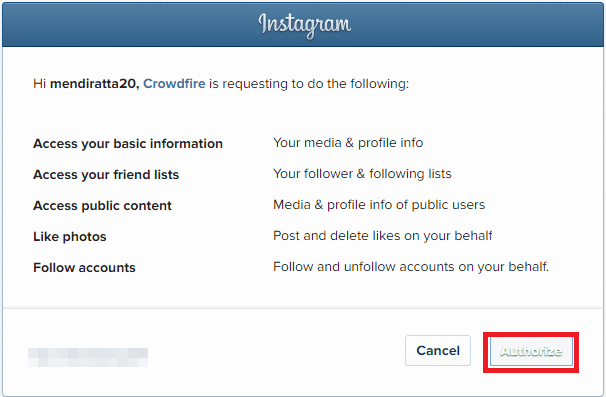
  4. Give access to CrowdFire by clicking on Authorize.
    authorize app
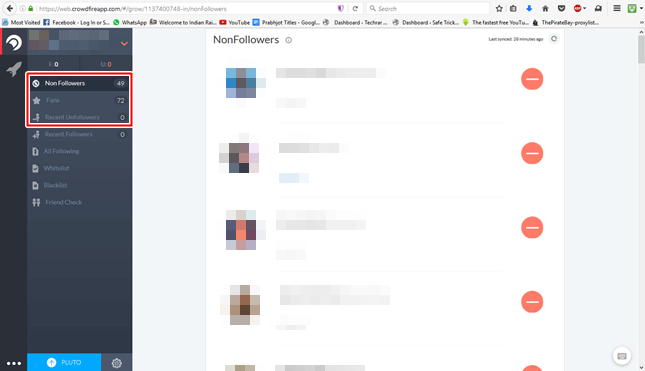
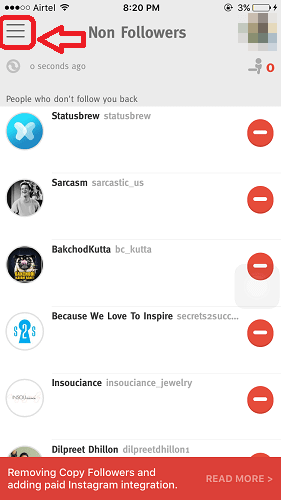
  5. After logging in you can select Non-Followers to see a list of people whom you are following but they are not following you back.
    various tabs
  6. Fans tab will show a list of people who are following you but you are not following them back.
  7. The Recent Unfollowers tab will show a list of people who unfollowed you recently.
  8. How To Detect/Check Unfollowers On Instagram (2 Ways)

     
    0
    How To Check Unfollowers On Instagram
        
    As you all already know that Instagram is a very cool and popular social networking platform. The user can use Instagram either from their website or their smartphone app. Generally, most users use Instagram from the app as it has a very nice and clean interface. In Instagram, a user needs to follow other users in order to see the content they post. On the other hand, the user on opposite side also needs to follow the user to see the content they post. But some people do not follow back which becomes frustrating as your Following count is greater than Followers count. Instagram itself does not let a user to check unfollowers on instagram. We can check see who we are following but followed user is following them or not is not possible. As this was becoming a serious issue, programmers and hackers all over the world got to work and designed various methods to check if someone unfollows you on Instagram.

    How To Check Unfollowers On Instagram. ?

    Method 1:- Use Website To Check Who Unfollowed You On Instagram.

    There are many websites available that let you check who Unfollowed you on Instagram. You just need to open up those websites. Log in using your Username and password. Give website the permission to check your Instagram account and you are done. Web sites that let you check who Unfollowed you on Instagram are listed below. And they all are free to use.

    Crowdfire Website.

    There were and still are few websites which can be used to manage your Instagram Account. However, recently due to changes in Instagram API some websites have disabled their service. Unfollowgram and Insta.friendorfollow.com to name a couple of them.
    The service which I am going to tell you is still active and works accurately. I have tested it and did the job perfectly. Have a look at the website used and the procedure to use it.
    1. Visit Crowdfire website to check who Unfollowed you on Instagram.
    2. Click on Login With Instagram.
      crowdfire website
    3. Now you will need to enter your username and password and click Log In.crowdfire web login
    4. Give access to CrowdFire by clicking on Authorize.
      authorize app
    5. After logging in you can select Non-Followers to see a list of people whom you are following but they are not following you back.
      various tabs
    6. Fans tab will show a list of people who are following you but you are not following them back.
    7. The Recent Unfollowers tab will show a list of people who unfollowed you recently.

    Method 2:- Use App To Check Who Unfollowed You On Instagram

    As most of the users prefer using Mobile devices rather than a computer for social media, hence I assume that this method will be vastly used. Following are the steps to check who unfollowed you on Instagram using apps.

    Crowdfire App

    1. The user needs to download and install App CrowdFire on your smartphone.
    2. Download Crowdfire app for android by clicking on download button below.
      Download From Playstore
    3. Download Crowdfire app for iOS by clicking on download button below.
      Apple appstore button
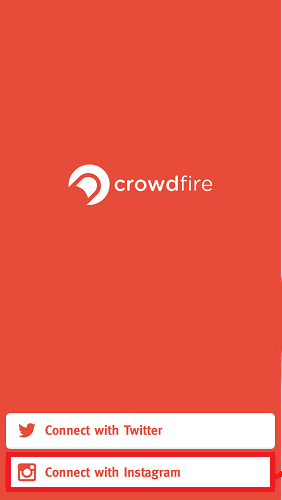
    4. Open the app and select Connect with Instagram.crowdfire app options
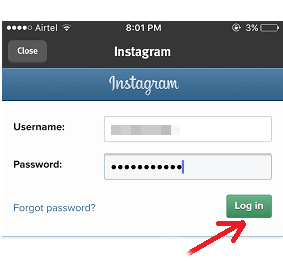
    5. Enter your Username, Password and Click Login.
      crowdfire app
    6. Authorize the app if prompted.
    7. Tap on three horizontal lines at top left corner.
      non followers
    8. Now tap on the desired tab to see the desired list.
    That’s it. Now you guys can easily track your followers.
    In conclusion, we hope you find this guide on how to check Unfollowers on Instagram is helpful to you. If you have any suggestions or queries, feel free to leave a comment below. If you feel like discussing any other tech stuff or have a request for a tutorial, contact us without any hesitation.

How To Check Own Mobile Number On All Operators

How To Check Own Mobile Number On All Operators.

Given below are USSD codes to check own number for all operators in India. Dial them from the sim that you want to know the number of and you don’t even need to spend money on paper recharge as well.

1. USSD Code To Check Own Number For Airtel :

*121#
airtel logo

2. USSD code to check own number for Aircel :

*1# or *131#
aircel logo

3. USSD code to check own number for BSNL :

*1#
bsnl logo

4. USSD code to check own number for Idea :

*147#

How To Check Own Mobile Number On All Operators

 
0
How To Check Own Mobile Number On All Operators
    
Today, there has been a huge increase in the use of mobile phones. Due to this, there are a number of operators and carriers in India that fight head to head in competition. Indian carriers follow aggressive policies to gain more customers. This ends in customers getting free prepaid connections and even free talk-time and data pack. Hence, customers are attracted to get new connections for dual sim mobiles. The only issue with these connections and sim cards is that once a user exhausts the free talk-time or data, he stops using the sim card. There are multiple sim cards lying and people don’t even remember their phone numbers. There is no way of a flex recharge as users forget their numbers and can’t even call someone to see the number.
If you have ever faced such a situation, and need to check own mobile number for some reason, then this article is for you. Here, we have listed simple USSD codes that you can simply dial via Sim of your carrier and check your own number. We have mentioned all major carriers so you can find number of any sim in India.

How To Check Own Mobile Number On All Operators.

Given below are USSD codes to check own number for all operators in India. Dial them from the sim that you want to know the number of and you don’t even need to spend money on paper recharge as well.

1. USSD Code To Check Own Number For Airtel :

*121#
airtel logo

2. USSD code to check own number for Aircel :

*1# or *131#
aircel logo

3. USSD code to check own number for BSNL :

*1#
bsnl logo

4. USSD code to check own number for Idea :

*147#
idea logo

5. USSD code to check own number for Reliance :

*1#
reliance logo

6. USSD code to check own number for Tata Docomo :

*580#
docomo logo

7. USSD code to check own number for Vodafone:

*111*2#
vodafone logo

8. USSD code to check own number for Videocon :

*1#
videocon logo

9. USSD code to check own number for Telenor :

*1#
telenor logo